
Log an expense without opening the app
Pocket PnL has five widgets for your Home Screen and Lock Screen, plus Siri phrases and shortcuts for logging money and checking your balance. Each one writes to the same private data as the app.

Free on iPhone. Needs iOS 17 or later.
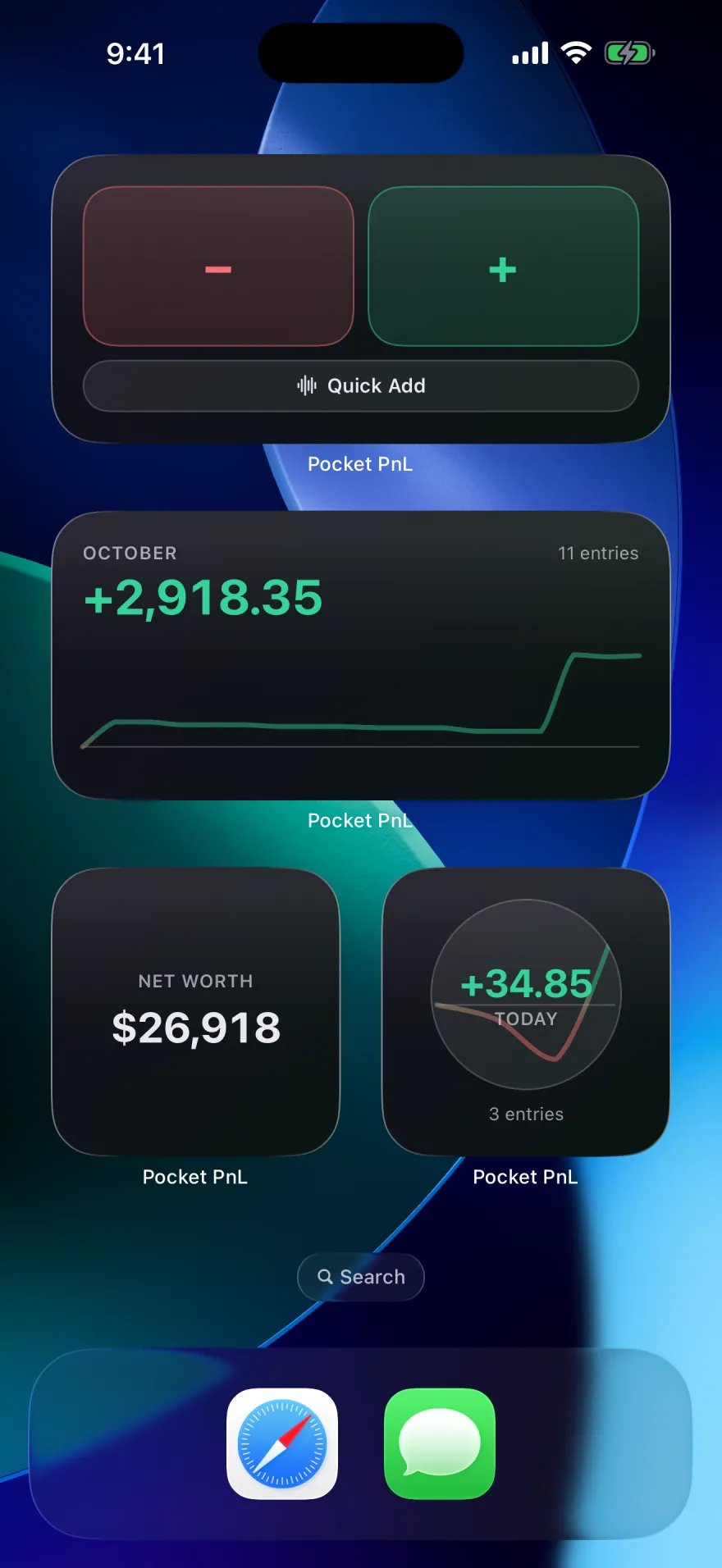
The widgets
| Widget | Shows | Sizes |
|---|---|---|
| Today | Your net for today, with the day's running trend | Small |
| This Month | Your net for the month so far, and the trend behind it | Medium |
| Net Worth | What you're worth, kept current by what you log | Small |
| Quick Add | Buttons to log money in or out without opening the app first | Small, medium |
| Today, Lock Screen | Your net for today on the Lock Screen | Circular, inline |
Adding a widget
- Touch and hold an empty spot on your Home Screen until the apps jiggle.
- Tap Edit, then Add Widget.
- Search for Pocket PnL, pick a widget and size, and tap Add Widget.
For the Lock Screen, touch and hold the Lock Screen, tap Customize, choose the Lock Screen, then tap the widget area and pick Pocket PnL. The widget area is under the clock on iOS 17 and 18, and near the bottom of the screen on iOS 26. The app also has a widget guide in Settings.
Siri and Shortcuts
Pocket PnL comes with three shortcuts that work as soon as the app is installed, without building anything in the Shortcuts app:
- Log Expense, with an amount, a note and a category.
- Log Income, with the same details.
- Get Balance, for today, this week, this month or this year.
Siri understands phrases like these:
- "Log an expense in Pocket PnL"
- "Add income to Pocket PnL"
- "What's my balance in Pocket PnL"
- "How much did I spend in Pocket PnL"
Siri asks how much, and the entry is saved on your iPhone like any other. Because these are App Shortcuts, they also appear in Spotlight and the Shortcuts app, and you can run one from the Action Button on iPhones that have it.
Why this helps
The hardest part of tracking spending is remembering to do it. A widget on your first Home Screen, or a phrase you can say while walking out of a shop, cuts logging down to a few seconds. Our guide on tracking spending has more on making it a habit.
Start with today's coffee.
There's no account to make first. Open the app, tap minus and type the amount.
Free on iPhone. Needs iOS 17 or later.